Getting Started with EMQX Message Queue in 10 Minutes

EMQX 6.0 introduces the Message Queue feature, a powerful mechanism for persistent, reliable, and intelligent message delivery in MQTT systems. Whether you need to persist messages for offline devices, balance load across multiple consumers, or ensure only the latest configuration is delivered, Message Queues bring production-grade resilience to your IoT and messaging workflows.
See why EMQX Message Queue is essential to your IoT architecture:
In this 10-minute hands-on guide, we’ll walk you through everything using MQTTX, the cross-platform MQTT 5.0 desktop client, and the EMQX Dashboard. No code required. By the end, you’ll know how to:
- Create and manage message queues
- Publish and consume queued messages
- Control message distribution with dispatch strategies
- Use Last-Value Semantics to keep only the latest update per key
- Enable auto-creation of queues on first subscription (coming in EMQX 6.0.1)
Let’s get started!
Prerequisites
Before we begin, ensure you have:
- EMQX 6.0+ running locally or remotely
- Dashboard:
http://localhost:18083/(login: admin/public)
- Dashboard:
- MQTTX installed (or any MQTT 5.0-capable client)
- Basic understanding of MQTT topics and QoS
Step 1: Create Your First Message Queue (Manual)
Let’s create a queue that captures all messages sent to t/demo.
- Open the EMQX Dashboard:
http://localhost:18083. - Navigate to Message Queue in the left menu.
- Click + Create (top right). Configure the queue:
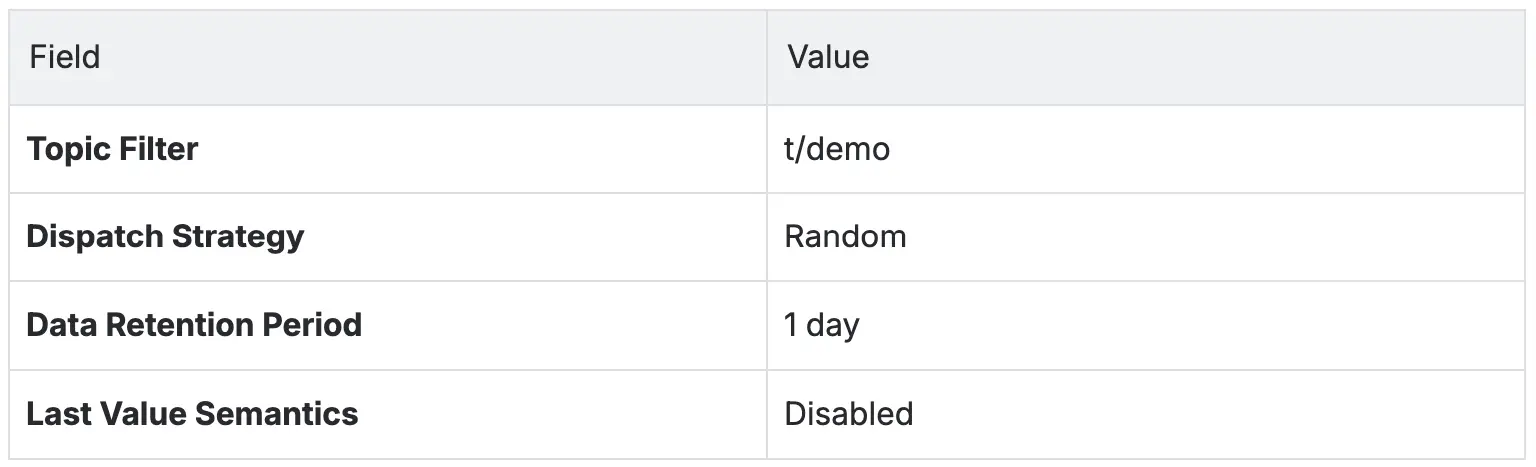
- Click Create.
Your queue is now active and will store every message published to t/demo.
Step 2: Publish Messages (No Subscribers Yet)
Let’s simulate a device sending data, even if no one is listening.
- Open MQTTX.
- Create a new connection as a publisher by clicking + New Connection.
- Configure the connection settings:
- Name: Publisher
- Host:
mqtt://localhost:1883 - Client ID: pub-001 (or any unique ID)
- Username and Password: Set according to the authentication configuration in the EMQX Dashboard (under Access Control → Authentication). If no authentication is enabled, you may leave them blank.
- Click Connect.
- In the message panel, send messages:
| Topic | QoS | Payload |
|---|---|---|
t/demo | 1 | {"msg": "Hello 1"} |
t/demo | 1 | {"msg": "Hello 2"} |
t/demo | 1 | {"temp": 23.5} |
These messages are now queued and persisted in EMQX, even with zero subscribers. They will be automatically delivered the moment a subscriber connects later.
Step 3: Subscribe and Receive All Queued Messages
Connect a consumer to watch all stored messages arrive instantly.
- New an MQTTX connection as a subscriber:
- Name: Worker A
- Client ID: worker-a
- Click + New Subscription to subscribe to:
- Topic: $q/t/demo
- QoS: 1
Result: You’ll receive all 3 messages immediately, even though you connected after they were published.
Step 4: Test Dispatch Strategies with Multiple Consumers
Let’s see how messages are shared across multiple workers.
Publish 10 Messages
- Make sure your Publisher connection is connected.
- Topic: t/demo
- QoS: 1
- Publish 10 messages manually, one at a time, with payloads:
msg-1→msg-2→msg-3→ … →msg-10. (Click Send after each.)
Add a Second Subscriber
- New connection: Worker B (Client ID: worker-b).
- Subscribe to:
$q/t/demo(QoS 1).
Now both workers are active.
Observe Distribution
With Random strategy, you will see results similar to the following:
Worker A: msg-1, msg-3, msg-7
Worker B: msg-2, msg-4, msg-5, msg-6...
Change Dispatch Strategy (Live Update)
Let’s switch to Round Robin for fair sharing.
- Go to the Dashboard → Message Queue page.
- Click Edit next to your
t/demoqueue. - Change Dispatch Strategy to
Round Robin. - Click Save.
Important*: Disconnect and reconnect both Worker A and Worker B for the change to apply.
- Repeat sending the same 10 messages:
msg-1throughmsg-10.
Result:
Worker A → msg-1, msg-3, msg-5...
Worker B → msg-2, msg-4, msg-6...
Note: With only 10 messages, the Round Robin pattern may not appear perfectly balanced due to the small sample size. The alternation becomes more obvious with higher message volumes.
Dispatch Strategies Summary
| Strategy | Behavior | Best For |
|---|---|---|
| Random | Sends each message to a randomly chosen subscriber. (default) | Unpredictable or demo scenarios |
| Round Robin | Delivers messages alternately to each subscriber in strict rotation. | Fair distribution regardless of speed |
| Least Inflight | Prefers subscribers with fewer in-flight (unacknowledged) messages. | Load balancing across uneven consumers |
Step 5: Test Last-Value Semantics (Only Latest Matters)
The last-value semantics feature is ideal for device configs, status updates, or settings, keeping only the most recent value per key.
Delete Old Queue
This removes the previous queue and its stored messages.
- Go to the Dashboard → Message Queue page.
- Click Delete button in the Actions column of the
t/demoentry.
Create a Queue with Last-Value Semantics
- Click + Create.
- Configure the fields:
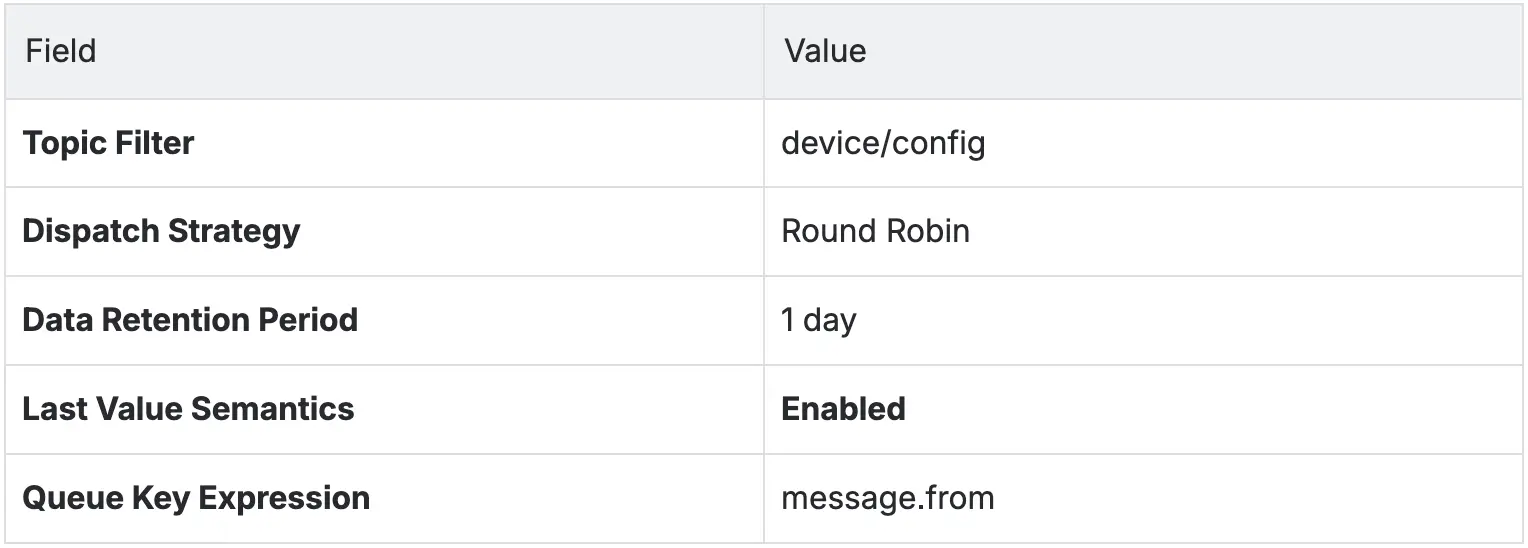
The "Queue Key Expression" defines how EMQX extracts a key from each message for deduplication in Last-Value Queues. When configured, a new message with the same queue key will overwrite any previous, unconsumed message with that key in the queue.
This field supports configuration using Variform expressions. In this quick start, we use
message.from, which extracts the key from the client ID of the message publisher. - Click Create.
Test It with MQTTX
Publisher (Simulate Device)
- New connection:
- Name: Device-001
- Client ID: device-001 (This is the key!)
- Publish a message with the payload:
{"ssid": "HomeWiFi", "channel": 6} - Wait 2 seconds, then publish update:
{"ssid": "OfficeWiFi", "channel": 11}
Subscriber
- New a connection and connect.
- Subscribe to:
$q/device/config.
Result: Only the latest message is delivered:
{"ssid": "OfficeWiFi", "channel": 11}
Try publishing from a different Client ID (device-002) — its message will be queued separately.
Advanced: Custom Queue Key Expression
Want to deduplicate messages based on part of the client ID or other custom metadata?
- When creating a new queue, enable Last-Value Semantics.
- Set Queue Key Expression using variform. For example:
message.headers.client_attrs.id. - Click Create.
- Define the client attribute used in the expression. Go to Management → MQTT Settings -> Client Attribute section. Click Add and set the following:

This defines a client attribute
id, which extracts the first segment of the client ID (split by a dot). For example, froma.b, it extractsa.
- Click Save Changes.
This step enables the queue to deduplicate messages based on that extracted client attribute value, rather than relying on the full client ID or payload content.
For example, messages published by clients with IDs a.b and a.c will be treated as having the same queue key (a), and thus overwrite each other in a Last-Value queue.
Step 6: Auto-Create Queues on First Subscription
With the auto-create, there is no need to pre-create queues — let EMQX do it.
Note: The Message Queue auto-creation feature is coming soon in EMQX 6.0.1. This step demonstrates the upcoming functionality. In current 6.0.0 releases, queues must be created manually.
Enable Auto-Creation (Last-Value Semantics Mode)
- Go to Dashboard → Management → MQTT Settings → Message Queue.
- Ensure the Enable Auto Create Last Value Semantics Queue is ON (default).
- Keep the configurations as they are and click Save Changes.
Note: To ensure proper queue behavior, you can enable either Auto Create Regular Message Queue or Auto Create Last Value Semantics Queue, but not both at the same time.
Test Auto-Creation
- Delete the previous queues (optional).
- In MQTTX, create a new connection and subscribe to:
$q/auto/config. - Check Message Queue list — it’s there!
EMQX automatically creates a last-value queue for auto/config!
Use Auto-Created Queue
We’ll use $q/auto/config (auto-created with last-value enabled).
- Simulate device updates by creating a new connection as a publisher (Client ID: device-003).
- Publish a message:
// First config
Topic: auto/config
Payload: {"ssid": "HomeNet", "channel": 6}
Wait 2s, then:
// Updated config
Payload: {"ssid": "OfficeNet", "channel": 11}
- Create a new connection as a subscriber (Client ID: worker-c).
- Subscribe to:
$q/auto/config.
Result: Only the latest message is delivered:
{"ssid": "OfficeNet", "channel": 11}
The first message was automatically overwritten, because it had the same key (device-001).
Summary
In this guide, you learned how to get started with EMQX Message Queue in a few minutes:
- Created and tested manual queues for reliable message delivery.
- Explored dispatch strategies: Random, Round Robin, and Least Inflight.
- Used Last-Value Semantics to retain only the latest message per key.
- Configured custom queue key expressions for fine-grained deduplication.
- Enabled and tested automatic queue creation on the first subscription.
Message Queues in EMQX extend native MQTT capabilities with features commonly found in enterprise-grade message queues, such as RabbitMQ, without requiring additional infrastructure.
For more details, refer to the official documentation: